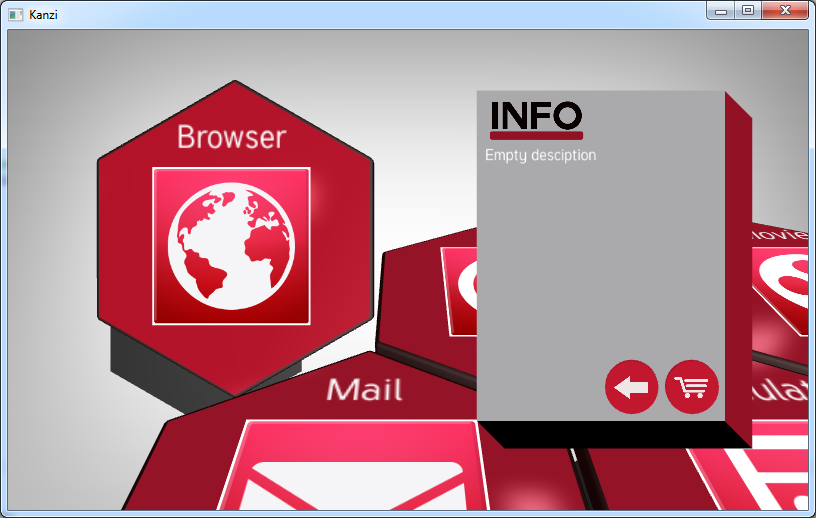
- Set the viewport layer (#Widget description layer) to visible
- Update the widget description in the text block component (#Widget description)
- Set the list box to disabled, to block scrolling while the widget description is shown.
KZ_CALLBACK kzsError projectLoaded(struct KzaApplication* application)
{
...
    /* Get the reference to the widget description layer. */
    applicationData->widgetDescriptionLayerNode
                = kzuObjectNodeGetRelative(screenNode, "#Widget description layer");

    /* Get the reference to the text block in the description layer */
    /* in which the widget description will be shown. */
    applicationData->widgetDescriptionTextBlockNode
                = kzuObjectNodeGetRelative(screenNode, "#Widget description");
...

KZ_CALLBACK static kzsError clickEventHandler(struct KzuMessage* message,
                                            void* userData)
{
    ...
    /* Show the widget description by setting the widget description layer visible. */
    {
        /* Get the widget description from the application data. */
        kzString description = kzuObjectNodeGetStringPropertyDefault(sourceNode,
                                                applicationData->widgetDescriptionPropertyType);

        /* Set the widget description layer to visible. */
        result = kzuObjectNodeSetVisible(applicationData->widgetDescriptionLayerNode, KZ_TRUE);
        kzsErrorForward(result);

        /* Set the widget description to the description text. */
        result = kzuObjectNodeSetStringProperty(applicationData->widgetDescriptionTextBlockNode,
                                                KZU_PROPERTY_TYPE_TEXT_BLOCK__TEXT, description);
        kzsErrorForward(result);
    }
    ...
KZ_CALLBACK kzsError projectLoaded(struct KzaApplication* application)
{
...
    /* Get the reference to the back button in the description layer. */
    applicationData->backButton = kzuObjectNodeGetRelative(screenNode,
                                                        "#Back button");

    /* Add the handler for the Back button. */
    result = kzuMessageDispatcherAddHandler(messageDispatcher,
                                        applicationData->backButton,
                                        KZU_MESSAGE_CLICK, KZ_NULL,
                                        buttonHandler, application);
    kzsErrorForward(result);
...

/* Callback function for click events. */
KZ_CALLBACK static kzsError buttonHandler(struct KzuMessage* message,
                                          void* userData)
{
    ...
    /* Instantiate the animation for the camera, in reverse order. */
    result = kzuObjectNodeAddAnimationItem(applicationData->cameraObjectNode,
                                           applicationData->targetAnimationClip,
                                           KZ_TRUE, 1, KZ_NULL);
    kzsErrorForward(result);

    /* Instantiate the animation for widget highlighting, */
    /* but with the 'reversed' parameter. */
    result = kzuObjectNodeAddAnimationItem(applicationData->currentlySelectedObject,
                                           applicationData->highlightAnimationClip,
                                           KZ_TRUE, 1, KZ_NULL);
    kzsErrorForward(result);

    /* Hide the description layer. */
    result = kzuObjectNodeSetVisible(applicationData->widgetDescriptionLayerNode,
                                     KZ_FALSE);
    kzsErrorForward(result);

    kzsSuccess();
}For example, select ES2_IMG_Debug solution configuration.

When you build and run the program, and select a widget the application highlights the widget and shows its description. The Back button at the bottom of the information layer brings the camera back to the scrolling view. Note that this tutorial does not cover the functionality of the Buy button.